Best Router Settings for Gaming
Specific router settings to check and adjust to reduce lag and improve consistency in online games.
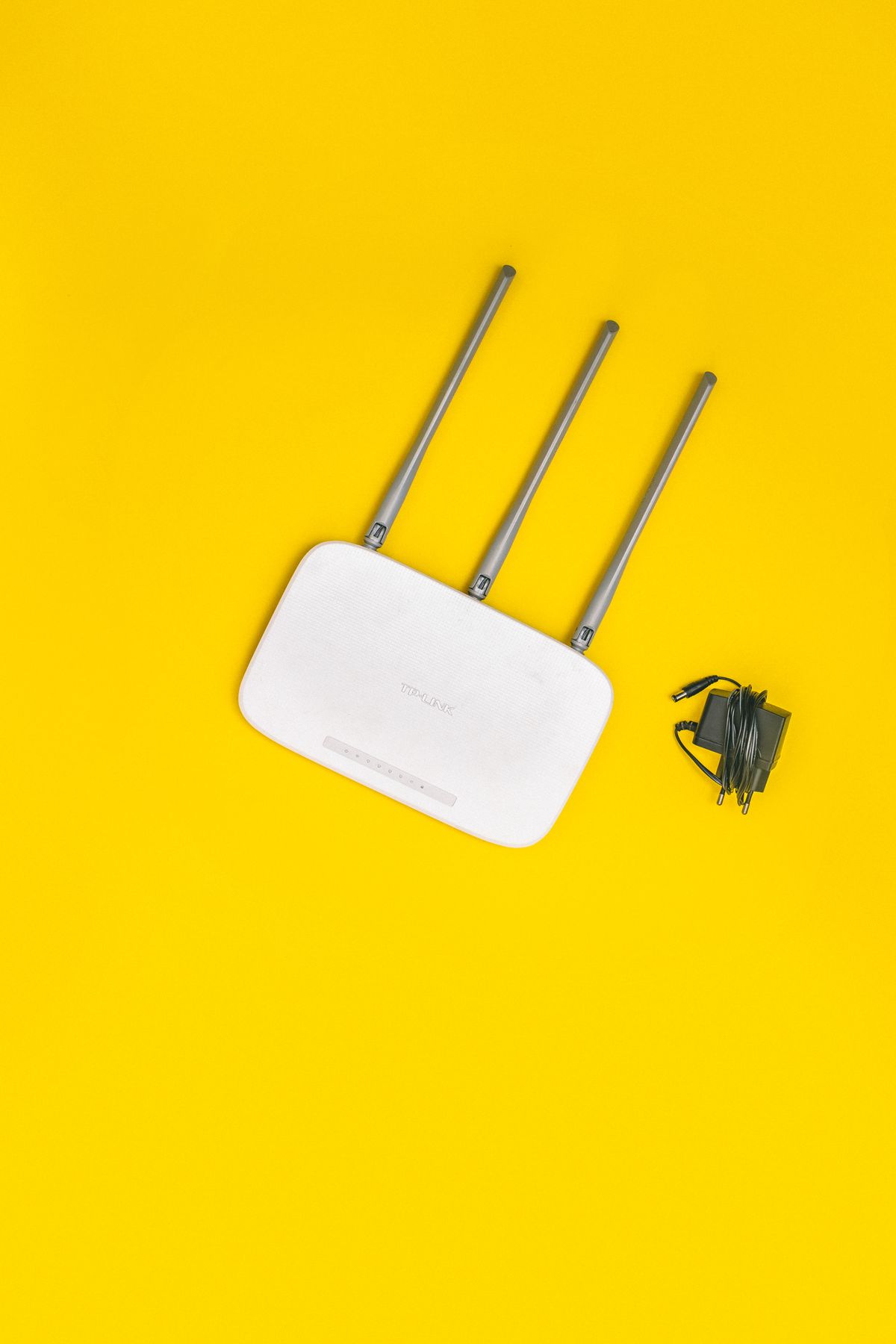
Most routers ship with settings tuned for general household browsing, not low-latency gaming. The good news is that a few targeted changes — most of which take under five minutes each — can meaningfully reduce ping spikes, fix NAT issues, and improve connection consistency. Here's exactly what to change and where to find each setting.
The Most Impactful Settings (Do These First)
Before diving into every menu, these three settings deliver the most improvement for the least effort:
- Enable QoS and prioritize your gaming device — prevents streaming, downloads, and other household traffic from spiking your ping mid-match
- Disable band steering — forces your gaming device onto 5GHz instead of letting the router choose, which sometimes picks the more congested 2.4GHz band
- Set your Wi-Fi to a less congested channel — neighboring routers sharing your channel add interference and latency
Everything below goes deeper on each of these and the other settings worth adjusting.
QoS — Quality of Service Setup
QoS tells your router which device or traffic type gets priority access to your bandwidth. When your upload bandwidth is saturated (common during gaming — game state updates are upload-heavy), QoS prevents that from spiking your in-game ping.
On TP-Link Archer routers: Advanced → QoS → Enable QoS → Set bandwidth → Add device by MAC address → Set your gaming PC or console to Highest priority
On ASUS routers (Adaptive QoS): Main dashboard → Adaptive QoS → Enable → Drag "Gaming" to the top of the priority order. Or use Traditional QoS to add your device's MAC address manually at highest priority.
On Netgear routers: Advanced → Setup → QoS Setup → Enable Upstream QoS → Add MAC address of your gaming device → Highest priority
On Eero, Google Nest, and other mesh systems: Most mesh systems handle QoS automatically or don't expose manual controls. If you have a mesh system and consistent lag spikes, a dedicated wired connection to the router node closest to your gaming PC is the most effective fix.
Note: QoS helps most on slower connections (under 200Mbps) or in households with heavy concurrent use. On gigabit fiber with light use, the impact is minimal.
Choosing the Right Wi-Fi Band and Channel
5GHz vs 2.4GHz: Always connect your gaming device to 5GHz (802.11ac or Wi-Fi 6/6E). It offers 50–200ms lower latency variance than 2.4GHz under typical home conditions, and handles congestion from neighboring networks better.
2.4GHz has longer range but is heavily congested in most buildings. Only use it if you're at the edge of your router's coverage range.
Channel selection on 5GHz: Most routers default to auto channel selection, which isn't always optimal. The least congested 5GHz channels in most areas are:
- Channel 36, 40, 44, or 48 (UNII-1 band) — indoor-only, no DFS radar requirements
- Avoid channels 100–144 if you're near an airport (DFS conflicts cause channel switching mid-session)
How to check your neighbors' channels: Download WiFi Analyzer (Android) or use the free tool inSSIDer (Windows) to see which channels nearby networks are using. Pick a channel that no one else is on. Change it in your router's Wireless settings → 5GHz → Channel.
Band steering: If your router offers "band steering" or "smart connect" (one unified network name for both bands), disable it for your gaming device. Band steering algorithms aren't always optimal and can park a device on 2.4GHz even when 5GHz is available. Create separate SSIDs for each band and manually connect your gaming device to the 5GHz network.
Gaming Routers vs. Regular Routers — Honest Assessment
Most "gaming" router features are marketing repackaging of standard QoS. The RGB and aggressive chassis styling add $50–100 to the price without adding networking capability.
That said, higher-end routers do genuinely perform better for gaming — just not because of gaming-specific features. They benefit from:
- Better CPUs and more RAM to handle QoS without becoming the bottleneck
- Wider external antenna arrays for better spatial performance
- More reliable 5GHz radio hardware
For most gamers, a mid-range router in the $100–200 range is the right target. The ASUS RT-AX86U (~$200) is consistently one of the best performers for gaming: solid QoS implementation, reliable 5GHz radio, good firmware support, and a straightforward interface. The TP-Link Archer AX55 (~$80) is a capable budget option.
Where you should spend money: if you're on a router that came with your ISP modem (the all-in-one unit), replacing it with a dedicated router almost always improves latency and reliability.
Open NAT Type — What It Means and How to Fix It
NAT (Network Address Translation) type affects how your gaming device connects to game servers and other players. There are three types:
- NAT Type 1 (Open): Direct connection. Best for gaming. Full matchmaking, no connection issues.
- NAT Type 2 (Moderate): Behind a router with UPnP. Usually fine; occasional connection issues with some games.
- NAT Type 3 (Strict): Heavily restricted. Causes matchmaking failures, voice chat drops, and inability to host or join certain lobbies.
How to get Open NAT:
Option 1 — Enable UPnP (easiest): Most routers have UPnP (Universal Plug and Play) in Advanced Settings → NAT Forwarding → UPnP. Enabling it allows games to automatically open the ports they need. This handles most NAT issues without manual work.
Option 2 — Manual port forwarding: For games with known port requirements, forward specific ports to your gaming device's local IP:
- Warzone: TCP/UDP 3074, UDP 3075-3076
- Fortnite: UDP 5222, 5795-5847
- Valorant: UDP 7000-7500
- Xbox Live: UDP 3074, TCP 3074
- PSN: TCP 80, 443, 3478-3480; UDP 3074, 3478-3479
Find port forwarding under Advanced → NAT Forwarding → Port Forwarding (TP-Link) or WAN → Port Forwarding (ASUS).
Double NAT: If you have a modem/router combo from your ISP and your own router connected to it, you have double NAT — two layers of address translation that almost guarantee Type 3. Fix it by putting the ISP device in bridge mode (call your ISP to enable this) or DMZ mode, so your router becomes the only NAT layer.
DNS Settings on the Router
Setting faster DNS on the router applies it to every device on your network, not just the one you change it on individually.
Find DNS settings in your router under:
- TP-Link: Advanced → Network → Internet → DNS
- ASUS: WAN → Internet Connection → WAN DNS Setting (set Automatic to No, then enter manually)
- Netgear: Advanced → Setup → Internet Setup → DNS addresses
Enter:
- Primary DNS: 1.1.1.1 (Cloudflare)
- Secondary DNS: 1.0.0.1
Cloudflare's DNS is consistently the fastest globally measured public DNS. Switching from ISP default DNS can reduce connection setup latency by 10–50ms and occasionally fixes specific routing issues where ISP DNS was sending game traffic to a suboptimal path.
Firmware Updates and Why They Matter
Router firmware updates often include:
- Security patches that close known vulnerabilities
- Bug fixes for specific throughput and stability issues
- QoS algorithm improvements
Check for updates in your router's admin panel under Advanced → System Tools → Firmware Upgrade (TP-Link) or Administration → Firmware Upgrade (ASUS). Enable automatic updates if the option exists, or check manually every 2–3 months.
Skipping firmware updates on a router connected to the internet is a meaningful security risk, not just a performance issue.
Frequently Asked Questions
Will changing these settings guarantee no more lag? They address everything within your control at home. Server-side issues, ISP congestion, and geographic distance to servers are outside your router's reach.
Is double NAT always a problem? Yes for gaming. It almost always results in Strict NAT and causes matchmaking and connection issues. Fix it before anything else if you have it.
What about gaming mode on my router? On most routers "Gaming Mode" is a QoS preset. It's usually fine to enable, but check what it actually changes — some implementations just disable certain network features without genuinely prioritizing gaming traffic.
My ping looks good but the game still feels laggy — why? Consistent average ping isn't the whole story. High ping variance (jitter) causes the rubber-banding and unresponsive feeling even when the average looks acceptable. WinMTR can measure jitter over time.
For a complete network setup optimized for your specific home layout and hardware, see our home network gaming setup service.
Marcus Webb
Hands-on PC builder and gaming hardware writer at GameInfoZone. Focused on practical, no-hype advice for everyday gamers.
Need Help With Your Gaming Setup?
From custom builds to fixing low FPS and lag, our techs can help you get the most out of your gaming PC.
Request Gaming PC HelpGet Gaming Deals & Setup Tips
Join the GameInfoZone newsletter for gaming gear deals, PC build tips, and performance guides.
Related Articles

Valorant Beginner's Guide: Agents, Roles, and Core Strategy
A thorough beginner's guide to Valorant covering agent roles, economy basics, ability usage, and performance tuning.

Stardew Valley Beginner's Guide: Farm Layout, Early Priorities, and Time Management
A thorough beginner's guide to Stardew Valley covering farm layout choices, early-game priorities, time management, and core systems.

Rocket League Beginner's Guide: Car Control, Positioning, and Boost Management
A thorough beginner's guide to Rocket League covering car control basics, positioning, boost management, and performance tuning.