How to Increase FPS on Windows
Practical, free ways to increase FPS on a Windows gaming PC before spending money on hardware upgrades.
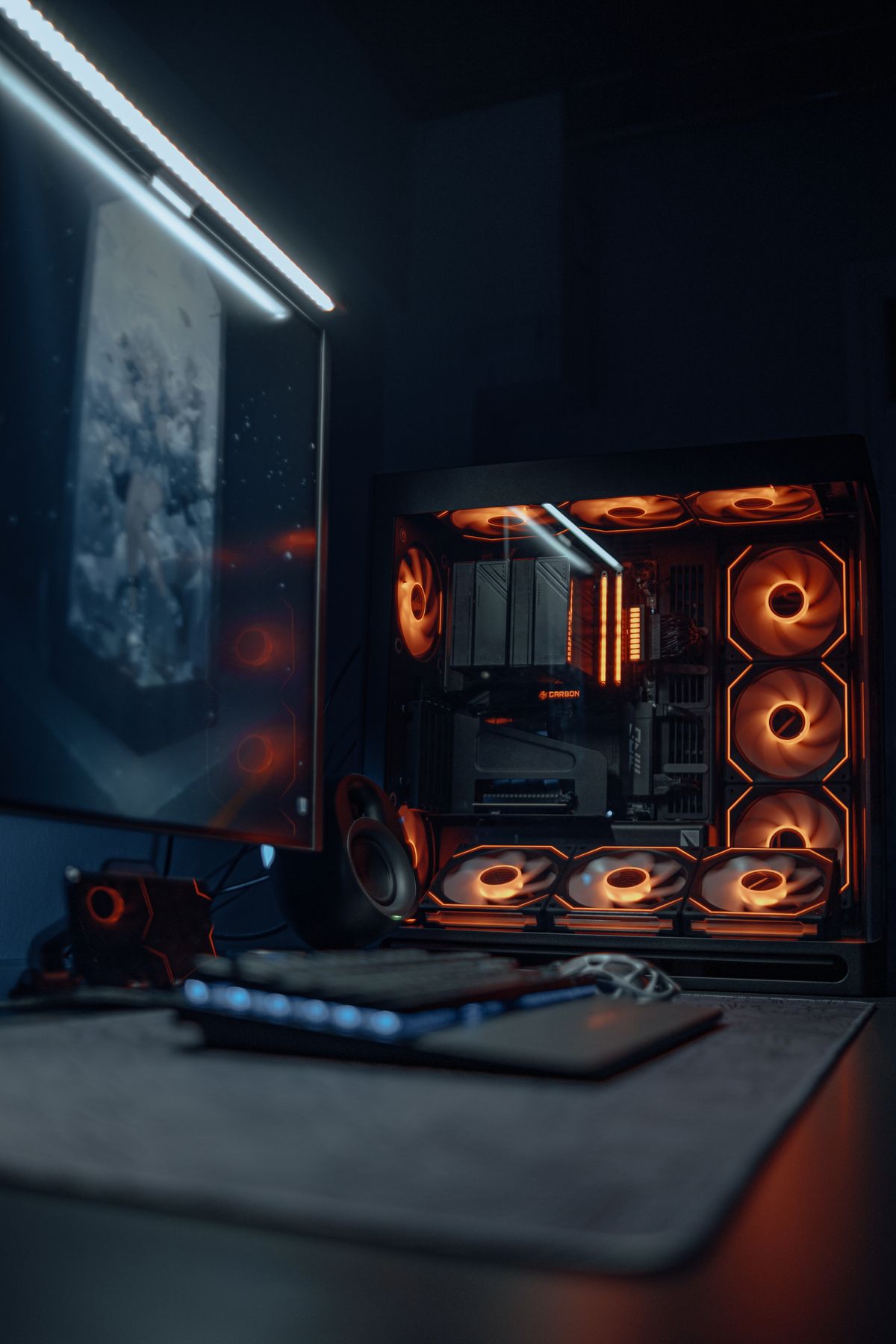
Before spending money on hardware, there are a dozen free changes that can meaningfully increase FPS on a Windows gaming PC. Most people leave 10–30% performance on the table from misconfigured settings alone. Work through these in order.
Step 1 — Update GPU Drivers the Right Way
Outdated GPU drivers are one of the most common and easiest-to-fix causes of poor FPS and stability issues. Windows Update routinely lags 1–3 months behind the latest driver, so go straight to the source:
- NVIDIA: nvidia.com/drivers — download GeForce Game Ready Driver for your card
- AMD: amd.com/support — download AMD Software: Adrenalin Edition
For a clean install, use DDU (Display Driver Uninstaller) — a free tool that fully removes the old driver before installing the new one. This matters because partial driver updates can leave conflicting files that cause stuttering and crashes. Boot into Safe Mode, run DDU, restart, then install the new driver fresh.
If you just bought a new GPU, a clean install is almost always worth doing even if the driver appears to install correctly through the normal method.
Step 2 — Set Windows Power Plan Correctly
Windows' default Balanced power plan throttles your CPU to save power, which directly reduces FPS in CPU-sensitive games. To change it:
- Open Control Panel → Hardware and Sound → Power Options
- Select High Performance (desktop PCs) or create a custom Balanced plan with minimum processor state set to 100% (laptops, to preserve battery)
AMD Ryzen caveat: On Ryzen CPUs, the standard Windows High Performance plan can actually hurt performance by disabling Ryzen's boost clock algorithm. Use the AMD Ryzen Balanced power plan instead — it installs with AMD chipset drivers and is specifically tuned for Ryzen's boost behavior. Look for it in the Power Options list after installing AMD drivers.
Laptops: Enable "Plugged in" performance mode. On Windows 11, go to Settings → System → Power & battery → Power mode and set it to "Best performance" when plugged in.
Step 3 — Enable Game Mode and Kill Background Apps
Game Mode reduces system interruptions during gaming and can recover 3–8% FPS in CPU-heavy titles:
- Go to Settings → Gaming → Game Mode and toggle it ON
While you're there, turn Xbox Game Bar OFF unless you actively use it — it runs background processes even when not open and adds CPU overhead.
For background apps: open Task Manager (Ctrl + Shift + Esc) while gaming and check the CPU and Memory columns. Common FPS killers:
- Browsers with many tabs — Chrome/Edge can use 500MB–2GB RAM and spike CPU during syncs
- Discord overlay — the in-game overlay adds consistent CPU overhead; disable it in Discord Settings → Overlay
- Cloud backup tools (OneDrive, Google Drive, Dropbox) — right-click the tray icon and pause syncing during gaming
- Other game launchers — Steam, Epic, GOG, EA App all run background processes; close launchers for games you aren't playing
Step 4 — In-Game Settings That Gain the Most FPS
Not all graphics settings are equal. Some tank FPS with minimal visual benefit; others are invisible at a glance but cost enormous GPU resources. Prioritize these:
Biggest gains (reduce these first):
- Render scale / Resolution scale — dropping from 100% to 85% typically gains 15–25% FPS with only a subtle softening of the image. In Valorant this is called "Render Resolution," in Fortnite it's "3D Resolution."
- Shadow quality — reducing from Ultra to Medium recovers 10–20 FPS on most mid-range cards
- Ray Tracing — disabling RT entirely typically recovers 30–50% FPS on cards below an RTX 4080. Always turn off RT before assuming you need a new GPU.
- Ambient occlusion — high AO quality costs 5–10 FPS with little visible benefit at 1080p
Minimal FPS impact (keep these higher):
- Texture quality — mostly VRAM-bound, low FPS cost if you have 8GB+ VRAM
- Anti-aliasing at 1440p — lower AA settings are barely visible at higher resolutions
Step 5 — Enable Hardware Accelerated GPU Scheduling (HAGS)
HAGS moves GPU memory scheduling from the CPU to the GPU itself, reducing CPU overhead and in some cases improving FPS and reducing stuttering. On Windows 11:
- Go to Settings → System → Display → Graphics
- Click Change default graphics settings
- Toggle Hardware Accelerated GPU Scheduling ON
Best results on: NVIDIA RTX 30/40 series and AMD RX 6000/7000 series. On older cards, results are mixed — enable it, play for a session, and disable it if you see new stuttering.
Requires Windows 10 version 2004 or newer and a compatible GPU with updated drivers.
Step 6 — Disable Full-Screen Optimizations and V-Sync
Full-screen optimizations is a Windows feature that converts exclusive fullscreen games into a borderless window, which can introduce input lag and FPS drops. Disable it per game:
- Right-click the game's .exe file (or shortcut) → Properties
- Click the Compatibility tab
- Check Disable fullscreen optimizations
- Click OK
In the NVIDIA Control Panel or AMD Software, also set the game to use Exclusive Full Screen mode rather than Borderless Window if the option exists.
V-Sync: Enabling V-Sync caps your FPS to your monitor's refresh rate and adds 1–3 frames of input lag. For competitive games, disable V-Sync in-game and use NVIDIA Reflex (or AMD Anti-Lag) instead — these reduce input lag without the tearing trade-off.
Step 7 — Check for Thermal Throttling
If your FPS starts high and drops over a gaming session, thermal throttling is the likely cause. Your CPU or GPU reduces its clock speed to protect itself from heat, and FPS follows.
To check: download MSI Afterburner (free) and enable the on-screen display. Watch GPU Temperature and GPU Core Clock during gameplay. If GPU temp hits 85–90°C and the clock speed drops noticeably in the same moment — that's throttling.
Safe operating ranges under load:
- GPU: 65–85°C is normal. Above 90°C consistently is a problem.
- CPU: 70–85°C is normal for modern CPUs. Above 95°C means your cooler isn't keeping up.
If you're throttling, see our guide on why your gaming PC is overheating for the diagnosis and fix steps.
Step 8 — Enable XMP/EXPO for RAM Speed
Most RAM ships clocked at 2133MHz by default — well below its advertised speed — until you manually enable XMP (Intel) or EXPO (AMD) in the BIOS. Running RAM below rated speed costs FPS, especially on AMD Ryzen where the memory controller is tightly coupled to the CPU.
How to enable it:
- Restart and enter BIOS (usually Delete or F2 during the manufacturer logo)
- Look for XMP, EXPO, or DOCP in the memory settings
- Select your RAM's rated profile (e.g., 3600MHz CL18)
- Save and exit
On a Ryzen system, enabling XMP to get from 2133MHz to 3600MHz can deliver 5–15% FPS gains in CPU-bound games like Valorant or CS2. It's one of the highest-value free upgrades you can make.
When It's a Hardware Problem
If you've done all of the above and FPS is still lower than benchmarks suggest for your hardware, it may be a hardware bottleneck:
- GPU bottleneck: FPS in GPU-heavy titles (1440p, high settings) is below what others get with the same card — consider a GPU upgrade or lower settings further
- CPU bottleneck: FPS is low specifically in 1080p competitive games at low settings, and Task Manager shows CPU at 90–100% while GPU is at 60–70% — CPU is the limiter
- VRAM bottleneck: Textures look degraded mid-game, heavy stuttering when moving into new areas — you're hitting VRAM limits (common on 4GB and 6GB cards in modern titles)
Frequently Asked Questions
Does reinstalling Windows actually help FPS? Sometimes, if your system has accumulated years of bloatware and background services. It's a valid last resort, but try every step above first — most FPS issues are solved without a reinstall.
Is overclocking worth it? GPU overclocking via MSI Afterburner is relatively low-risk and can gain 5–10% performance for free. CPU overclocking carries more risk and requires proper cooling and testing. For most people, enabling XMP/EXPO (above) is the easier, safer equivalent.
My FPS is fine but feels choppy — why? Low 1% and 0.1% FPS percentiles cause perceived stuttering even when average FPS looks fine. This is usually caused by background CPU spikes, insufficient RAM speed, or shader compilation stutter in DX12/Vulkan titles.
If you've tried these steps and FPS is still lower than expected for your hardware, our low FPS troubleshooting service can diagnose your specific setup.
Marcus Webb
Hands-on PC builder and gaming hardware writer at GameInfoZone. Focused on practical, no-hype advice for everyday gamers.
Need Help With Your Gaming Setup?
From custom builds to fixing low FPS and lag, our techs can help you get the most out of your gaming PC.
Request Gaming PC HelpGet Gaming Deals & Setup Tips
Join the GameInfoZone newsletter for gaming gear deals, PC build tips, and performance guides.
Related Articles

Valorant Beginner's Guide: Agents, Roles, and Core Strategy
A thorough beginner's guide to Valorant covering agent roles, economy basics, ability usage, and performance tuning.

Stardew Valley Beginner's Guide: Farm Layout, Early Priorities, and Time Management
A thorough beginner's guide to Stardew Valley covering farm layout choices, early-game priorities, time management, and core systems.

Rocket League Beginner's Guide: Car Control, Positioning, and Boost Management
A thorough beginner's guide to Rocket League covering car control basics, positioning, boost management, and performance tuning.