Why Your Gaming PC Is Overheating
Common causes of gaming PC overheating and practical steps to diagnose and fix the problem.
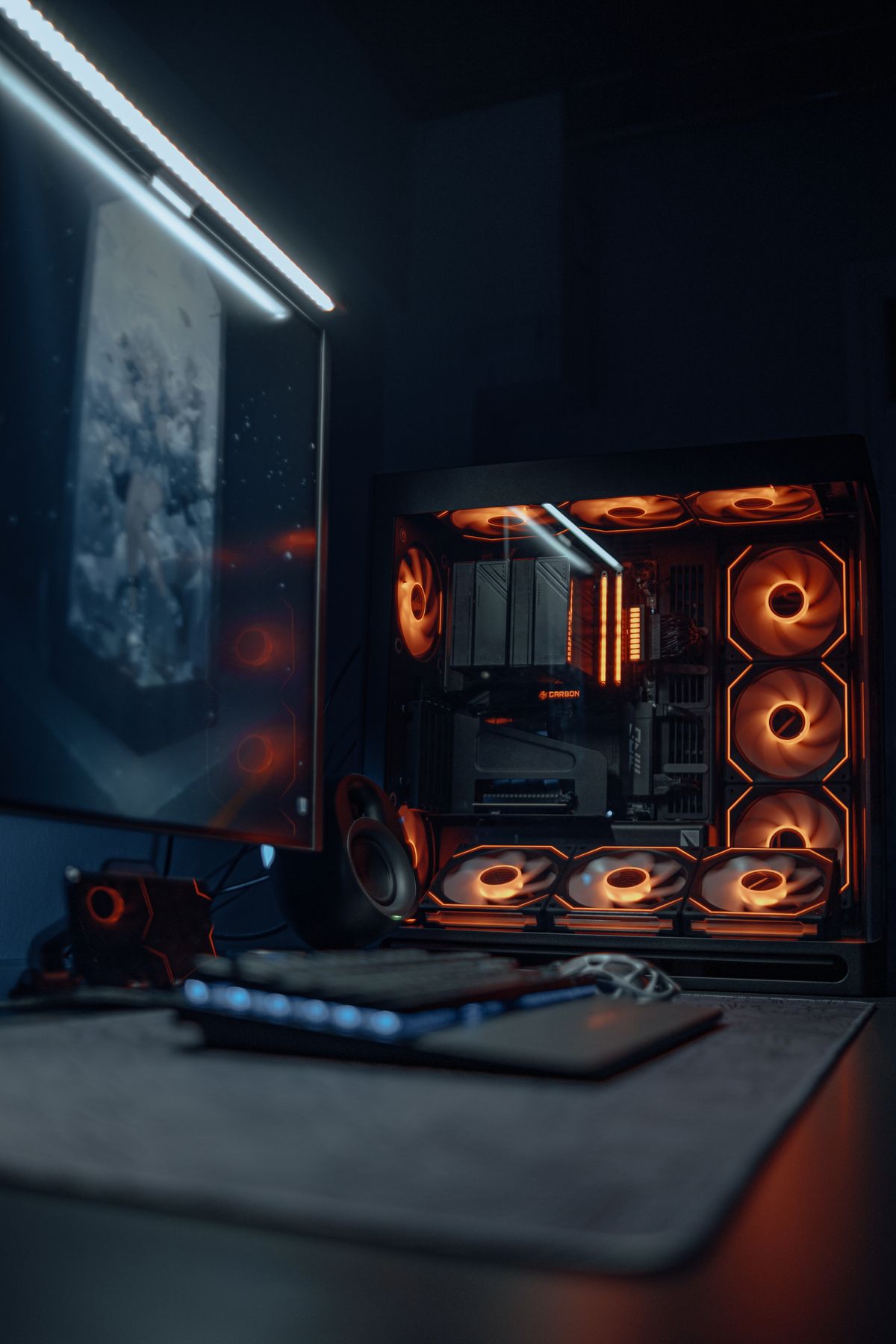
Overheating isn't just an annoyance — it actively reduces your FPS through thermal throttling, can cause crashes and instability, and shortens component lifespan over time. The good news is that the most common causes are fixable without buying new hardware. Here's how to diagnose exactly what's happening and fix it.
How to Know If You're Actually Overheating
First, confirm the problem with real temperature data. Download HWInfo64 (free) or MSI Afterburner (free) and run them while gaming for 15–20 minutes. Watch these values:
Safe operating ranges under gaming load:
- GPU: 65–83°C is normal. Above 85°C consistently means your cooling system is working at its limit. Above 90°C means your GPU is likely throttling to protect itself.
- CPU: 70–85°C is normal for modern desktop CPUs. Above 90–95°C means your cooler is insufficient or something is wrong. Laptops can run hotter by design (95°C is within spec on many laptop CPUs).
What thermal throttling looks like: In MSI Afterburner's on-screen display, enable GPU Core Clock and GPU Temperature simultaneously. If you see the temperature spike above 85–90°C and the core clock drop by 100–300MHz in the same moment — that's thermal throttling in action. Your GPU is slowing itself down to shed heat, which directly reduces FPS.
If your temps are below the ranges above but you're still having problems, overheating may not be the cause — see our how to increase FPS on Windows guide for other causes.
Cause 1 — Dust Buildup
Dust is the most common cause of overheating in gaming PCs that are more than a year old. It accumulates on heatsink fins, fan blades, and intake filters and acts as insulation, trapping heat against the components.
How often to clean: Every 6–12 months for a typical desktop environment. More often if you have pets, carpeted floors, or the PC sits on the floor.
How to clean it properly:
- Power off completely and unplug from the wall
- Move the PC to a well-ventilated area (outdoors or a garage works well)
- Use short bursts of compressed air (canned or compressor) to blow dust out of:
- CPU heatsink fins (hold fans still while doing this so the air doesn't spin them at unsafe speed)
- GPU heatsink fins from both sides
- Case intake and exhaust fan blades
- Front mesh filter (remove and tap it clean, or rinse if it's plastic mesh)
- PSU exhaust fan (blow from outside the case)
- Use a soft brush or cotton swab for stubborn dust in corners
Never use a vacuum cleaner inside a PC — the static electricity it generates can damage components.
After cleaning, a well-built mid-range PC that was running at 88°C might drop to 72°C under the same load. It's that impactful.
Cause 2 — Dried Thermal Paste
Thermal paste fills the microscopic gaps between your CPU and its cooler, allowing heat to transfer efficiently. Over time (typically 3–5 years for quality paste, sooner for cheaper paste) it dries out and cracks, reducing thermal conductivity significantly.
Signs of dried thermal paste: Temperatures that were acceptable a year ago are now 15–20°C higher under the same workload.
How to replace it:
- Power off, unplug, and open the case
- Remove the CPU cooler (refer to your cooler's manual for your specific mounting bracket)
- Clean off the old paste from both the CPU and cooler contact plate using 99% isopropyl alcohol and a lint-free cloth or coffee filter. Avoid lower concentrations — 70% isopropyl leaves residue.
- Apply a pea-sized amount (roughly 3–4mm dot) of new thermal paste to the center of the CPU
- Reinstall the cooler, which spreads the paste evenly
Recommended paste: Arctic MX-4 or MX-6 is excellent for the price (~$8–10). Noctua NT-H1 and Thermal Grizzly Kryonaut are also well-regarded options. Avoid the paste that sometimes comes bundled with budget coolers.
Reapplying thermal paste on a CPU that's been running hot for a year typically drops temperatures 10–20°C. On laptops, this is the single most impactful fix and should be done every 3–4 years.
Cause 3 — Poor Airflow in the Case
Even a clean PC with fresh thermal paste will run hot if the case airflow is poorly set up. The goal is a clear, directional path for air: cool air enters, passes over components, and hot air exits.
The standard effective layout: Front and/or bottom as intake, rear and top as exhaust. This creates a front-to-back airflow path that mirrors how air naturally rises (hot air rises, so top exhaust helps).
Common airflow mistakes:
- All fans set to exhaust: Creates negative pressure that draws air in through every gap and crack in the case, bypassing filters and creating turbulence
- Fans set to fight each other: Intake and exhaust fans on the same panel pointing opposite directions cancel out
- Cable spaghetti blocking airflow: Bunches of unsecured cables directly in front of GPU intake or blocking the path from intake to exhaust fans
How many fans do you need? For a gaming PC under 200W total TDP: 2 intake + 1 exhaust is the minimum. For 300W+ systems (RTX 4080/4090, high-end CPUs): 2–3 intake + 2 exhaust is more appropriate.
If you're not sure which direction your fans are spinning: most fans blow air in the direction the concave side of the blades faces. There's also usually an arrow molded onto the frame showing both spin direction and airflow direction.
Cause 4 — Insufficient Cooling for the CPU or GPU
Stock coolers that come with CPUs are designed for the CPU's base TDP rating under typical workloads. They're often not adequate for sustained gaming loads, especially if the CPU runs hot by design (AMD's higher-TDP Ryzen chips, Intel's K-series).
CPU cooling upgrades:
- Budget: Cooler Master Hyper 212 (~$35) handles most mid-range CPUs fine up to around 95W TDP
- Mid-range: DeepCool AK620 (
$55) or be quiet! Dark Rock 4 ($75) for higher TDP CPUs - High-end: Noctua NH-D15 (~$100) is the benchmark for air cooling; can handle nearly any desktop CPU without throttling
Liquid cooling (AIO) isn't necessary for most gaming CPUs and introduces additional failure points (pump, coolant, tubes). A quality air cooler handles 95% of gaming workloads effectively.
GPU cooling: GPUs come with their own cooler and generally can't be upgraded without replacing the entire cooler assembly. If your GPU is consistently above 85°C, the most practical fix is:
- Ensure the case has adequate intake airflow blowing over the GPU
- Use MSI Afterburner to create a more aggressive fan curve (Auto GPU fan often doesn't ramp up aggressively enough until temps are already high)
- Check if the GPU's fan isn't failing (spin down from 60–100% in Afterburner and listen)
Cause 5 — Running in a Hot Environment
Ambient room temperature has a direct impact on component temperatures. Every 10°C increase in ambient temperature raises component temps by roughly 5–8°C. A PC running at 75°C GPU in a 20°C room will run at 80–83°C in a 30°C room — which can push an already-hot GPU into throttling territory in summer.
If your gaming PC is:
- In a small, poorly ventilated room that heats up during long sessions
- Inside a desk enclosure or entertainment center with limited airflow
- In a room that gets direct afternoon sun through windows
...the PC is fighting against the environment in addition to its own heat output.
Practical fixes: open a window, use a small fan to circulate room air, or move the PC out of any enclosed furniture.
When to Reapply Thermal Paste — Step by Step
Do this if: temperatures have crept up significantly from what they were when the PC was new, or if you're seeing throttling after cleaning dust and the paste is 3+ years old.
- Power off and unplug the PC from the wall
- Ground yourself by touching a metal part of the case before touching components (or use an anti-static wrist strap)
- Remove the CPU cooler — for AM5 AMD coolers, remove the four screws; for Intel LGA1700, same process; consult your cooler's manual if uncertain
- Clean both the CPU heat spreader and cooler contact plate with 99% isopropyl alcohol and a lint-free cloth. Use a cotton swab for corners. Allow to dry fully (30–60 seconds).
- Apply a single pea-sized dot (3–4mm diameter) of thermal paste to the exact center of the CPU
- Reinstall the cooler, pressing it down evenly before tightening screws in an X pattern (not one corner at a time) to ensure even spread
- Boot and verify temperatures in HWInfo64
Quick Wins Without Opening the Case
If you want to rule out simple causes first:
- Ensure the PC isn't in an enclosed space — even a few inches of clearance at intake and exhaust vents makes a difference
- Blow compressed air through the front grille without opening the case — removes light surface dust from filters
- Raise the PC off carpet if it sits on the floor — carpet fibers block bottom intake vents and hold heat
- Lower fan speed in BIOS/software is NOT a fix; if fans are already running high, they're doing so because temps require it
Frequently Asked Questions
What's the fastest way to tell if I'm thermal throttling? Open MSI Afterburner, add GPU Core Clock and GPU Temperature to the on-screen display, and play a demanding game for 15 minutes. Watch for the clock dropping while temperature is peaking.
Do I need liquid cooling? Not for most gaming setups. A quality air cooler (DeepCool AK620, Noctua NH-D15) outperforms entry-level 240mm AIOs and has no pump or coolant to fail.
Is it safe to clean with compressed air while fans are spinning? Hold the fan blades still with a finger while blowing compressed air through the heatsink. Spinning fans at very high speed from compressed air can exceed their bearing rating.
My GPU hits 90°C but the game still runs fine — should I worry? Short-term, most GPUs can handle it. Long-term, running consistently at 90°C+ shortens capacitor lifespan on the board. More practically, GPU boost clocks drop at high temps — you're leaving performance on the table even if the game isn't visibly stuttering.
If cleaning and airflow fixes don't resolve persistent high temperatures, our gaming PC optimization service includes thermal paste replacement, airflow review, and hardware-specific diagnostics.
Marcus Webb
Hands-on PC builder and gaming hardware writer at GameInfoZone. Focused on practical, no-hype advice for everyday gamers.
Need Help With Your Gaming Setup?
From custom builds to fixing low FPS and lag, our techs can help you get the most out of your gaming PC.
Request Gaming PC HelpGet Gaming Deals & Setup Tips
Join the GameInfoZone newsletter for gaming gear deals, PC build tips, and performance guides.
Related Articles

Valorant Beginner's Guide: Agents, Roles, and Core Strategy
A thorough beginner's guide to Valorant covering agent roles, economy basics, ability usage, and performance tuning.

Stardew Valley Beginner's Guide: Farm Layout, Early Priorities, and Time Management
A thorough beginner's guide to Stardew Valley covering farm layout choices, early-game priorities, time management, and core systems.

Rocket League Beginner's Guide: Car Control, Positioning, and Boost Management
A thorough beginner's guide to Rocket League covering car control basics, positioning, boost management, and performance tuning.