How to Reduce Lag in Online Games
Practical steps to diagnose and fix lag in online games, from network settings to router configuration.
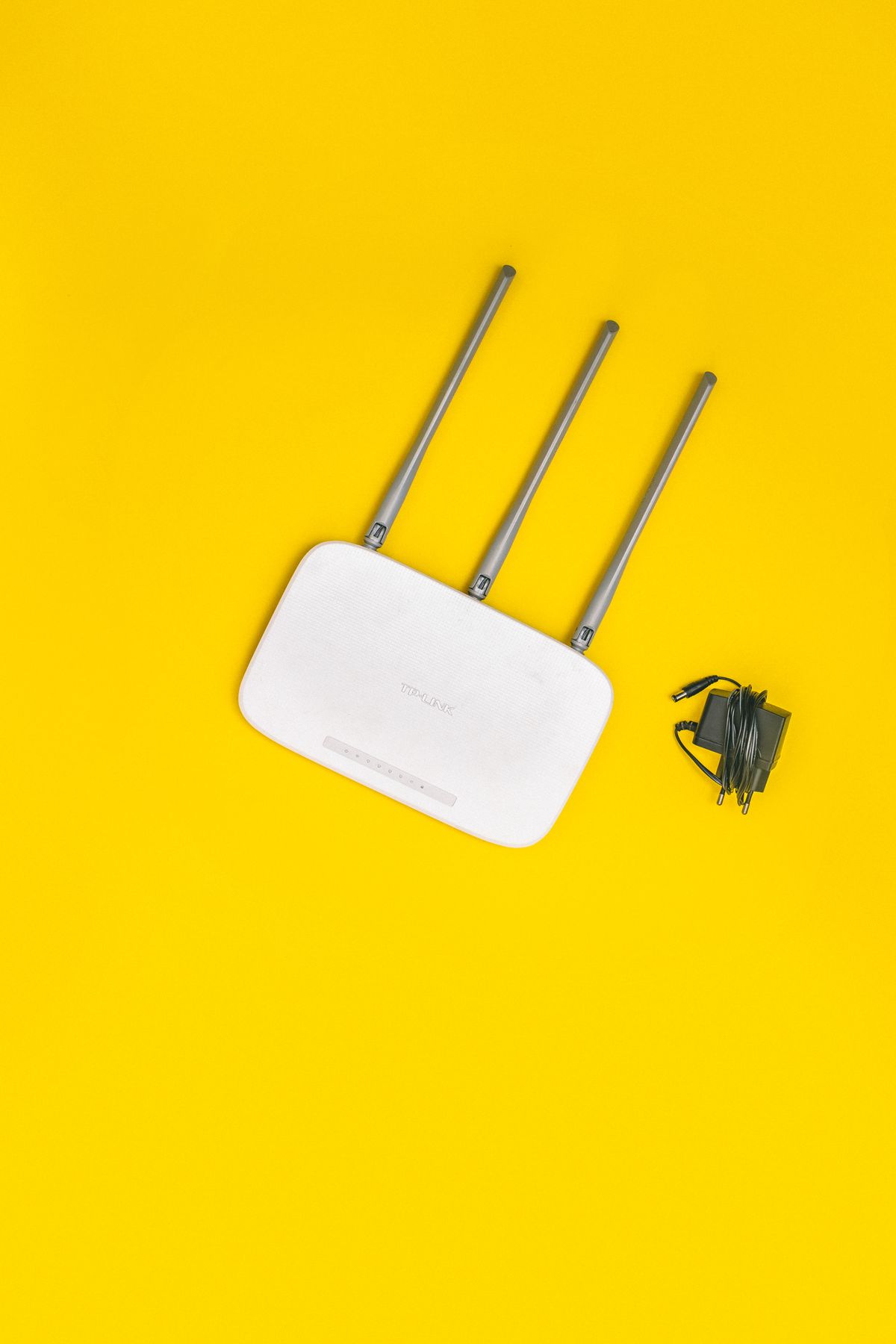
Online lag is one of the most frustrating things in gaming, and it has more than one cause. The fix depends entirely on what type of lag you're experiencing — network latency, packet loss, and FPS drops all feel similar but require completely different solutions. Here's how to diagnose and fix each one.
Understanding the Different Types of Lag
Before you change anything, it helps to know what you're actually dealing with:
- High ping / latency lag — your inputs feel delayed, character moves a half-second after you press the button. Caused by distance to the game server or a congested network path. Measured in milliseconds (ms); under 50ms is good, 50–100ms is acceptable, above 100ms feels noticeable in fast-paced games.
- Packet loss — your character teleports, rubber-bands backward, or the game seems to "skip." Caused by packets of data being dropped in transit. Even 2–3% packet loss causes rubber-banding in games like Warzone or Valorant.
- FPS lag — the game stutters or feels choppy but your ping is fine. This is a local hardware issue, not a network issue. See our how to increase FPS on Windows guide for this.
To diagnose: Use PingPlotter (free version available) or simply open Command Prompt and run:
ping -n 100 8.8.8.8
This sends 100 pings to Google's DNS. Look at the results: consistent times of under 30ms with 0% loss is a healthy connection. Spikes above 100ms or any "Request timed out" entries indicate a problem worth investigating.
Step 1 — Switch to Ethernet
This is the single most impactful change for most people. Wi-Fi introduces latency variance — even a fast Wi-Fi connection on 5GHz can spike from 5ms to 80ms unpredictably due to interference, other devices, or the router's channel congestion. Ethernet eliminates that variance entirely.
A wired connection gives you:
- Consistent latency — the ping you see is the ping you get, every packet
- No interference from neighboring networks, microwaves, or Bluetooth devices
- Higher throughput for large game updates
If running a cable directly isn't practical, MoCA adapters (use your home's coaxial cable lines) or powerline adapters are good middle options. MoCA is generally more reliable; powerline performance varies by wiring quality. Either is significantly more consistent than Wi-Fi for gaming.
If you must use Wi-Fi: connect to 5GHz, sit as close to the router as possible, and use a Wi-Fi 6 (802.11ax) adapter if your router supports it.
Step 2 — Router QoS and Placement
Quality of Service (QoS) tells your router to prioritize gaming traffic over other household use — so a family member streaming 4K doesn't spike your ping mid-match.
- TP-Link routers: Advanced → QoS → Enable QoS → Add your gaming PC or console by MAC address and set to highest priority
- ASUS routers: Adaptive QoS is in the main dashboard — set "Gaming" as the top priority category, or use Traditional QoS to add your device manually
- Netgear routers: Advanced → Setup → QoS Setup → Enable upstream QoS → Add device by MAC
Router placement: The router should be in a central, elevated location with antennas pointed vertically. Walls, floors, and especially concrete/brick significantly reduce 5GHz signal. If your gaming PC is two rooms and a floor away from the router, no QoS setting will fully compensate for a weak signal.
Step 3 — Close Bandwidth-Heavy Background Apps
During gaming, other devices and apps on your network compete for bandwidth, which creates packet queuing and latency spikes. The usual suspects:
- Windows Update — can silently download multi-GB updates in the background. Pause it: Settings → Windows Update → Pause updates for 1 week
- Streaming services (Twitch, YouTube, Netflix) running on other devices on the same network
- Cloud backup (OneDrive, Google Drive, Dropbox) — uploading large files during gaming can saturate your upload bandwidth and cause high ping
- Torrent clients — even well-throttled torrents affect upload and create latency spikes
On your gaming PC specifically, check Task Manager → Performance → Ethernet and look at Send/Receive rates while gaming. If something unexpected is using bandwidth, trace it to the process via the App History tab.
Step 4 — Pick the Right Game Server Region
In many games you can manually select your server region. Your lowest-ping region isn't always the closest geographically — internet routing sometimes takes inefficient paths, and some regional data centers are less congested.
How to test: Use Cloudflare's speed.cloudflare.com to measure latency to different Cloudflare PoPs, which roughly approximate major game server locations. Or use the in-game latency tool if available (Valorant shows region ping in settings, for example).
If you're in the eastern US and find EU servers give you 90ms but West US gives you 75ms — use West US even if East is closer on a map. Follow the actual numbers.
Step 5 — Change Your DNS Server
DNS (Domain Name System) translates server names to IP addresses before your game can connect. A slow DNS server adds 10–50ms to connection setup times and can occasionally cause routing issues.
Recommended DNS servers:
- Cloudflare: 1.1.1.1 / 1.0.0.1 — consistently the fastest globally measured DNS
- Google: 8.8.8.8 / 8.8.4.4 — reliable fallback
To change DNS on Windows:
- Settings → Network & Internet → Ethernet (or Wi-Fi) → Edit (next to DNS server assignment)
- Switch to Manual, enable IPv4
- Set Preferred DNS to 1.1.1.1, Alternate to 1.0.0.1
- Save
Better yet, set DNS at the router level so all devices on your network benefit. Find DNS settings in your router admin panel under WAN or Internet settings.
Step 6 — Disable Nagle's Algorithm
Nagle's Algorithm is a Windows TCP optimization that bundles small packets together before sending them, which reduces bandwidth use but adds latency. Disabling it removes a layer of buffering and can reduce in-game ping by 5–15ms.
Registry edit (proceed carefully):
- Open Registry Editor (Win + R, type
regedit) - Navigate to:
HKEY_LOCAL_MACHINE\SYSTEM\CurrentControlSet\Services\Tcpip\Parameters\Interfaces - Click each interface folder and check the DhcpIPAddress value to find your active network adapter
- In that interface folder, create two DWORD (32-bit) values:
TcpAckFrequency— set value to 1TCPNoDelay— set value to 1
- Restart your PC
This only affects your gaming PC, not your router or other devices. Revert by deleting those two values if you experience any issues.
Step 7 — Check for Packet Loss vs. High Latency
High ping and packet loss feel similar in-game but have different root causes and fixes. Here's how to tell them apart:
Test for packet loss:
ping -n 100 8.8.8.8
Look for "Request timed out" lines in the output. Even 1–2 timeouts in 100 pings (1–2% loss) will cause rubber-banding in competitive games.
Interpreting results:
- 0 packet loss, under 50ms: Your connection is healthy; lag is server-side or FPS-related
- Packet loss to 8.8.8.8 but not to your router IP: The problem is between your ISP and the wider internet
- Packet loss even to your router: Problem is inside your home (loose cable, bad Wi-Fi signal, failing network card)
Use WinMTR (free) for a more detailed hop-by-hop trace to pinpoint exactly where in the network path packets are being dropped.
When It's Your ISP's Problem
If you've done everything above and still have consistent high latency or packet loss, the issue may be outside your control — at your ISP.
Signs it's an ISP issue:
- Problem happens at the same time every day (congestion during peak hours)
- Packet loss appears at the first hop after your router (tracert shows it immediately upstream)
- Other people in your area report the same issue
What to do: Call support and ask them to check for "line errors" or "packet loss upstream." Request a technician visit. Document your ping test results before calling — having actual numbers (e.g., "18% packet loss at hop 2 during 6–9pm daily") makes the conversation more productive than reporting "the game lags."
Frequently Asked Questions
Does a VPN reduce lag? Usually no — a VPN adds routing hops and typically increases ping by 10–50ms. Gaming VPNs (like Exitlag or Mudfish) are a niche exception for routing around specific congested ISP paths to certain game servers, but they're not a general lag fix.
Does closing apps on other devices help? Yes, if those devices are actively uploading or downloading. A device that's idle doesn't meaningfully affect your connection.
What ping is unplayable for competitive games? Above 80–100ms starts to feel noticeably delayed in shooters. Consistent 120ms+ ping makes fast-paced games like Valorant and CS2 very difficult to play competitively.
For a complete network setup tailored to gaming, see our home network gaming setup service.
Marcus Webb
Hands-on PC builder and gaming hardware writer at GameInfoZone. Focused on practical, no-hype advice for everyday gamers.
Need Help With Your Gaming Setup?
From custom builds to fixing low FPS and lag, our techs can help you get the most out of your gaming PC.
Request Gaming PC HelpGet Gaming Deals & Setup Tips
Join the GameInfoZone newsletter for gaming gear deals, PC build tips, and performance guides.
Related Articles

Valorant Beginner's Guide: Agents, Roles, and Core Strategy
A thorough beginner's guide to Valorant covering agent roles, economy basics, ability usage, and performance tuning.

Stardew Valley Beginner's Guide: Farm Layout, Early Priorities, and Time Management
A thorough beginner's guide to Stardew Valley covering farm layout choices, early-game priorities, time management, and core systems.

Rocket League Beginner's Guide: Car Control, Positioning, and Boost Management
A thorough beginner's guide to Rocket League covering car control basics, positioning, boost management, and performance tuning.